Parsli Documentation
Everything you need to extract structured data from your documents using AI. Whether you're a non-technical founder connecting to Google Sheets or a developer building API integrations, this guide has you covered.
Getting Started
Parsli turns your PDFs, images, invoices, emails, and documents into clean, structured data — automatically. No coding required. Here's how to get up and running in under 5 minutes.
Create your free account
Create a parser

Define your schema
Test with a sample document
Connect your integrations
Creating Parsers
A parser is the core building block. Think of it as a "recipe" that tells the AI what data to extract from a specific type of document.
Examples of parsers you might create:
- Invoice Parser — extracts vendor, amounts, line items, due dates
- Receipt Parser — extracts store name, items, totals, payment method
- ID Document Parser — extracts name, ID number, date of birth, expiry
- Contract Parser — extracts parties, dates, key terms, obligations
- Email Attachment Parser — auto-extract from incoming emails via Gmail
How to create a parser
- Go to the Parsers page.
- Click "New Parser".
- Enter a name and optional description.
- Click "Create". You'll land on the parser detail page.
Parser status
Each parser has a status that controls whether it processes documents:
| Status | Behavior |
|---|---|
| Active | Accepts and processes new documents |
| Paused | Rejects new extraction requests |
| Archived | Hidden from the dashboard (soft delete) |
Limits
Free accounts can create up to 5 parsers. Paid plans include unlimited parsers.
Defining Your Schema
Your schema tells the AI exactly what data to pull from each document. Each field you add becomes a column in your output data.
Field types
| Category | Types | Use case |
|---|---|---|
| Text | text, email, url, phone, address, rich text | Names, descriptions, contact info |
| Numbers | number, decimal | Amounts, quantities, prices |
| Date & Boolean | date, boolean | Dates, yes/no flags |
| Selection | single-select, multi-select | Categories, tags, dropdown values |
| Compound | object, list, table | Nested data, line items, repeating rows |
Adding fields
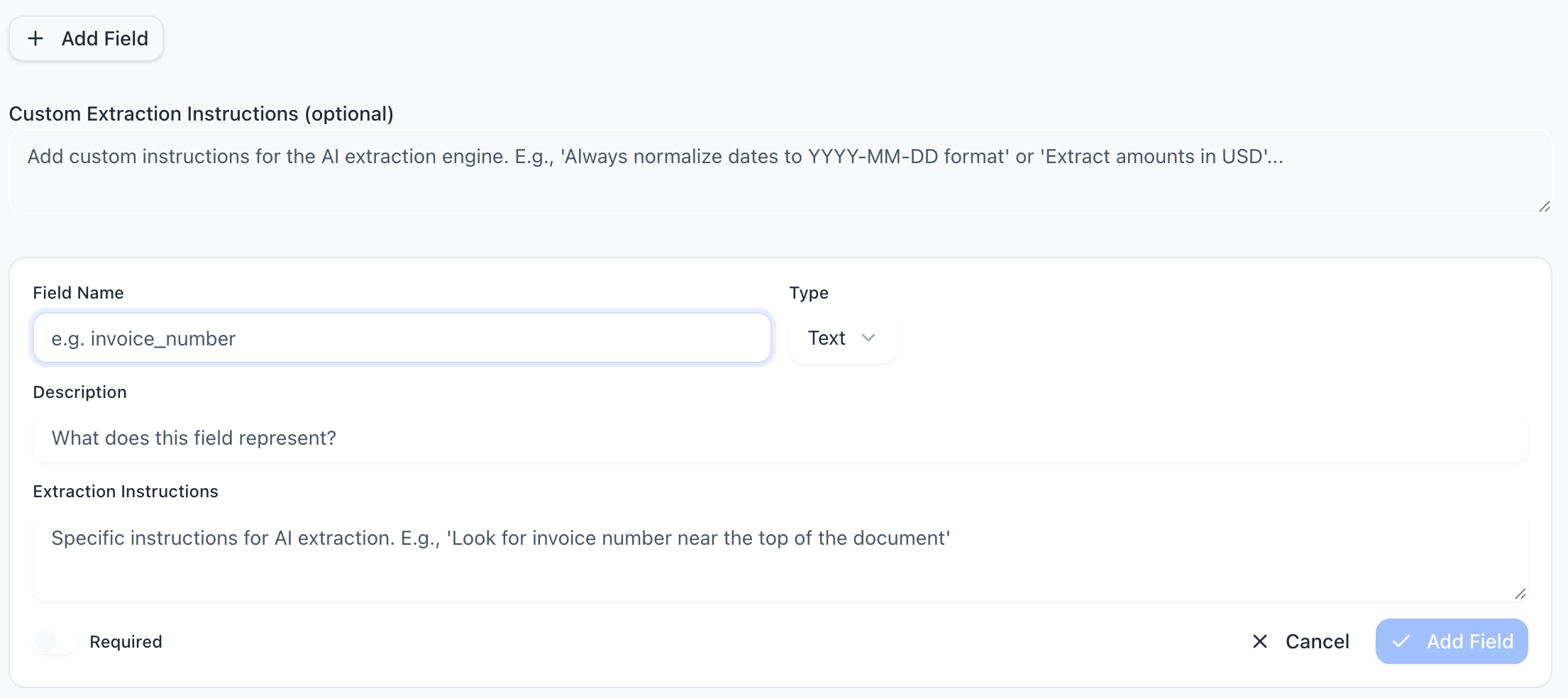
- Open your parser and go to the Schema tab.
- Click "Add Field".
- Enter a field name (e.g. "invoice_number").
- Select the field type (e.g. "text").
- Optionally add a description to help the AI understand what to look for.
- Toggle Required if the field should always be present.
- Click Save.
Compound fields (tables & nested data)
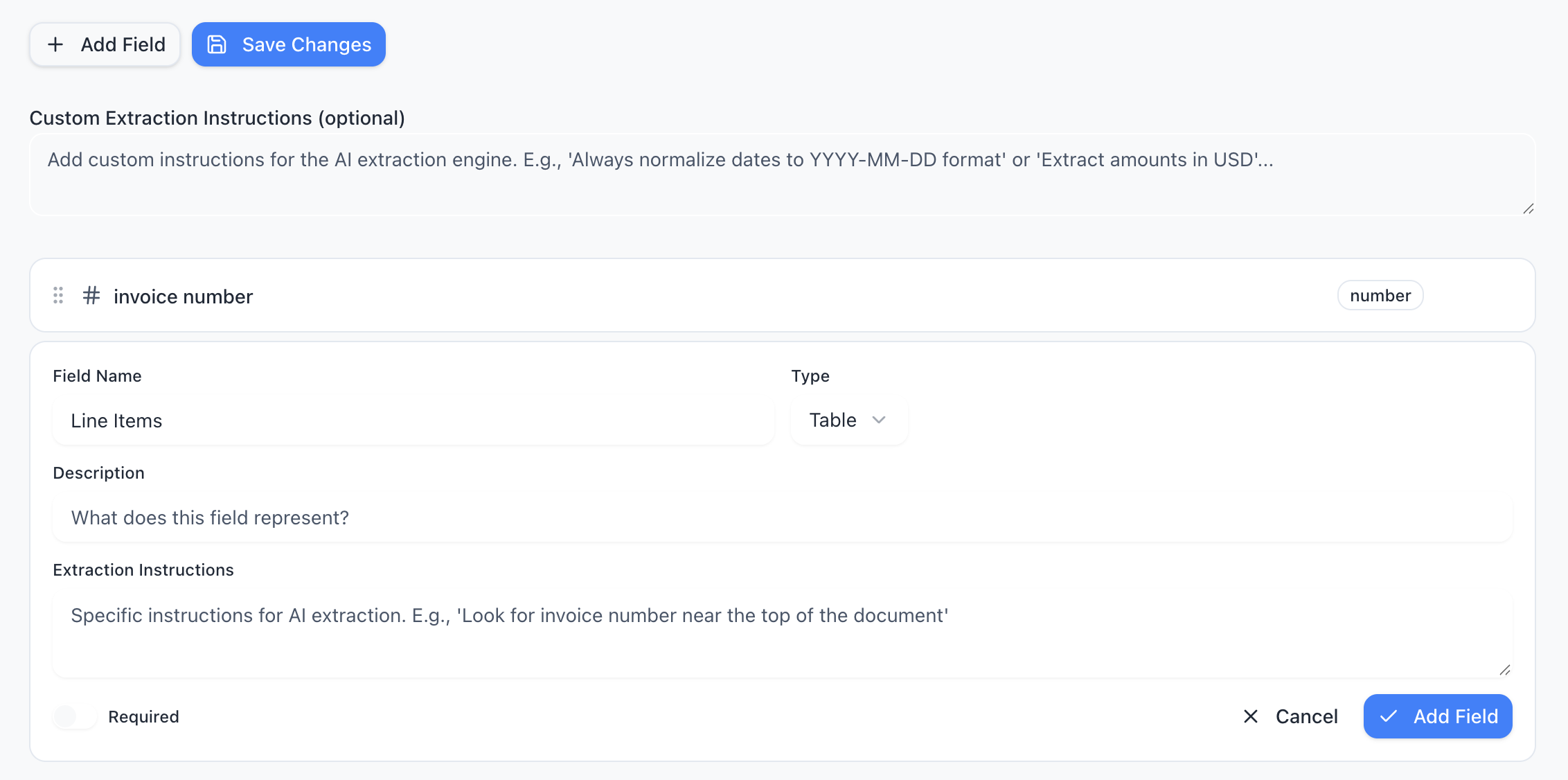
Use table fields for repeating rows (like invoice line items). Use object fields for grouped data (like a vendor with name + address). Use list fields for simple arrays of values.
Example: Invoice line items table
Add a "line_items" field of type table, then define columns: "description" (text), "quantity" (number), "unit_price" (decimal), "total" (decimal).
Custom extraction instructions
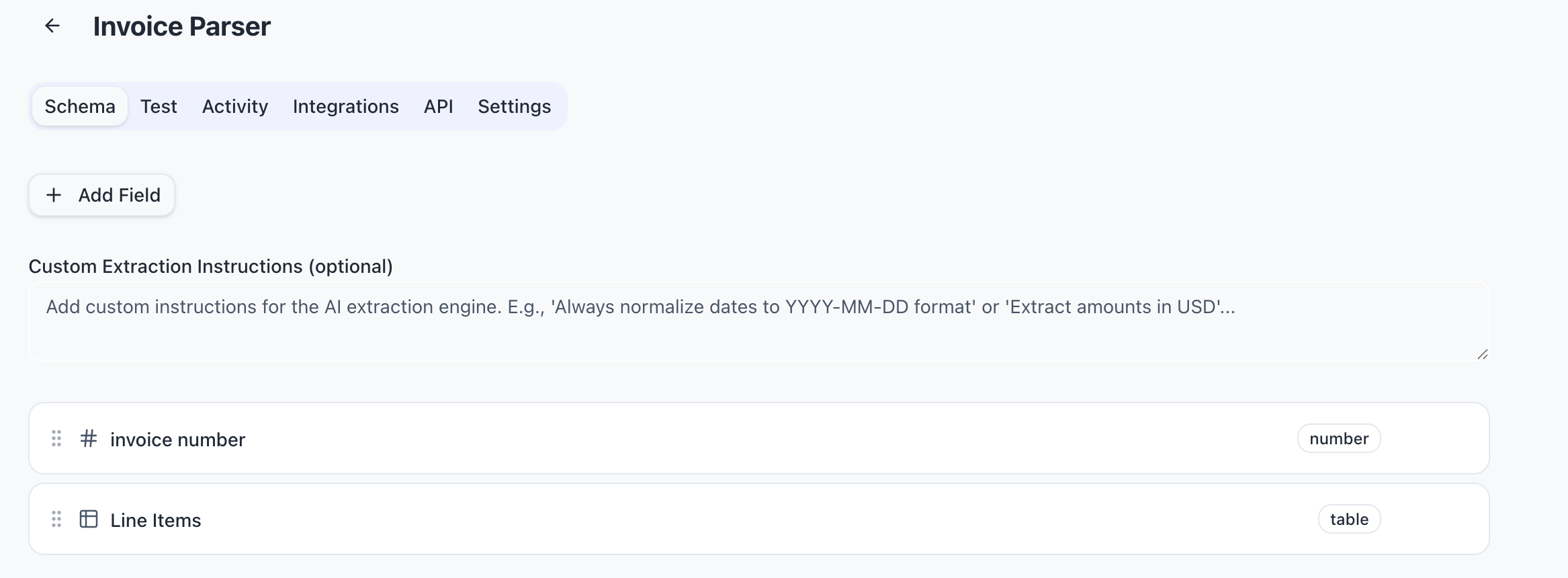
At the bottom of the Schema tab, you'll find a Custom Extraction Instructions text area. Use this to give the AI parser-level guidance that applies to every extraction.
Example instructions:
- "Always normalize dates to YYYY-MM-DD format"
- "Extract amounts in USD. If a different currency, note it in the field."
- "For the category field, classify as: Hardware, Software, or Services"
- "If a PO number is not present, use the invoice number instead"
Testing Extraction
Before connecting integrations, test your parser to make sure it extracts the right data.
- Open your parser and go to the Test tab.
- Drag-and-drop a sample document (or click to browse).
- Wait a few seconds while the AI processes your document.
- Review the extracted data in Table view or JSON view.
- If results aren't right, go back to Schema and adjust your fields or instructions.
Reading your results
The results view shows each field with its extracted value. Pay attention to:
- Table view — shows fields in a readable format with type badges
- JSON view — raw output, useful for developers to verify structure
- Missing values — shown as "-" when the AI couldn't find data
- Confidence — the AI assigns confidence scores; low-confidence fields are flagged
Integrations
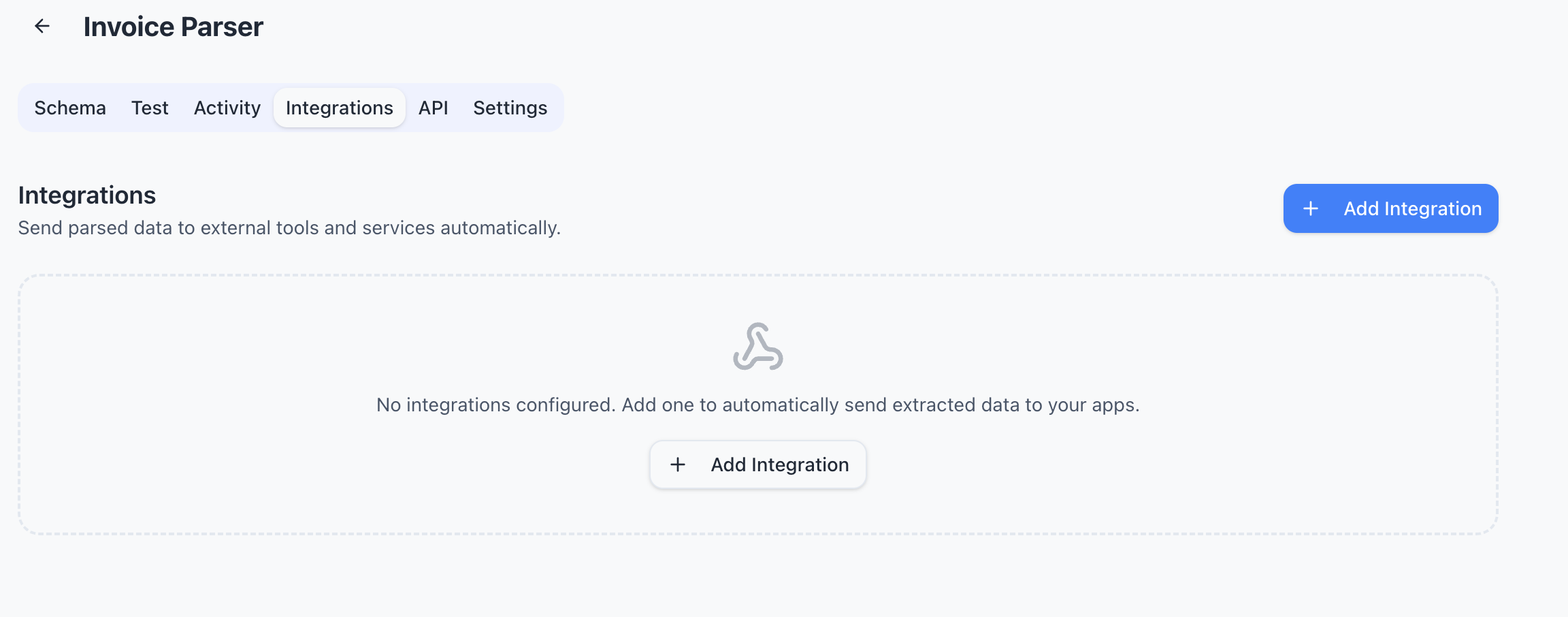
Once your parser is working, connect it to the tools you already use. Open your parser's Integrations tab to add any of the following:
Google Sheets
Pull extracted data directly into a Google Sheet — no code needed. Parsli generates a live data feed URL that Google Sheets can read automatically.
- In the Integrations tab, click "Add Integration" and select Google Sheets.
- Copy the generated
IMPORTDATAformula. - Paste it into any cell in your Google Sheet.
- Your sheet now automatically pulls the latest extracted data as CSV.
=IMPORTDATA("https://parsli.co/api/parsers/{id}/feed?token={token}&format=csv")Zapier
Connect to 5,000+ apps through Zapier. Every time a document is processed, the extracted data is sent to your Zap.
- In Zapier, create a new Zap with the "Webhooks by Zapier" trigger.
- Choose "Catch Hook" and copy the webhook URL.
- In Parsli, add a Zapier integration and paste the webhook URL.
- Click "Test" to send a sample payload to Zapier.
- In Zapier, continue building your Zap with the extracted data fields.
Make (formerly Integromat)
Similar to Zapier — create a Make scenario with a "Custom webhook" module, copy the URL into Parsli, and your extracted data flows into your automation.
Custom Webhooks
Send extracted data to any HTTP endpoint. Perfect for developers who want to push data to their own backend, database, or custom application.
- Add a Webhook integration.
- Enter your endpoint URL and HTTP method (POST or PUT).
- Optionally configure authentication (Bearer token or Basic auth).
- Click "Test" to verify delivery.
Webhook payload format:
{
  "event": "document.processed",
  "parser_id": "abc-123",
  "parser_name": "Invoice Parser",
  "document_id": "doc-456",
  "timestamp": "2026-03-06T12:00:00Z",
  "data": {
    "invoice_number": "INV-2026-001",
    "vendor_name": "Acme Corp",
    "total_amount": 1250.00,
    "due_date": "2026-04-01"
  },
  "metadata": {
    "file_name": "invoice.pdf",
    "mime_type": "application/pdf",
    "source_type": "upload",
    "page_count": 1
  }
}
Gmail Inbox
Automatically extract data from email attachments. Parsli connects to your Gmail account (read-only) and processes attachments from specific senders.
- Add a Gmail Inbox integration.
- Click "Connect Gmail Account" and authorize read-only access.
- Set a from filter — only emails from this address will be processed (e.g.
invoices@supplier.com). - Click "Activate".
Parsli checks your inbox every 5 minutes. When a matching email with an attachment arrives, it's automatically extracted and sent to your other integrations (webhooks, Google Sheets, etc.).
API Reference
For developers who want to integrate extraction into their own applications. The API accepts documents and returns structured JSON.
Authentication
API requests require a Bearer token. Create API keys in your parser's API tab.
- Open your parser and go to the API tab.
- Click "Create Key" and give it a name.
- Copy the key immediately — it's shown only once.
- Store it securely (environment variable, secret manager, etc.).
Extract document
Send a document for extraction using the REST API:
curl -X POST https://parsli.co/api/v1/extract \
  -H "Authorization: Bearer ext_YOUR_API_KEY" \
  -H "Content-Type: application/json" \
  -d '{
    "file": {
      "name": "invoice.pdf",
      "type": "application/pdf",
      "data": "BASE64_ENCODED_FILE_CONTENT"
    }
  }'
Response:
{
  "success": true,
  "parser_id": "abc-123",
  "document_id": "doc-456",
  "results": {
    "invoice_number": "INV-2026-001",
    "vendor_name": "Acme Corp",
    "total_amount": 1250.00,
    "due_date": "2026-04-01",
    "line_items": [
      { "description": "Widget A", "quantity": 10, "unit_price": 100.00, "total": 1000.00 },
      { "description": "Widget B", "quantity": 5, "unit_price": 50.00, "total": 250.00 }
    ]
  }
}
Inbound webhook
Each parser also has a unique inbound webhook URL for sending documents without API keys. Find it in the API tab. Send documents as multipart form data or JSON with base64 content.
# Using multipart form data
curl -X POST https://parsli.co/api/inbound/webhook/YOUR_TOKEN \
  -F "file=@invoice.pdf"
Error codes
| Code | Meaning |
|---|---|
| 200 | Success — extracted data returned |
| 400 | Bad request — missing or invalid file |
| 401 | Unauthorized — invalid or missing API key |
| 402 | Payment required — monthly credit limit reached |
| 404 | Parser not found |
| 500 | Server error — extraction failed |
Credits & Billing
Parsli uses a simple page-based credit system. Each document extraction uses 1 credit, regardless of file type or size.
| Plan | Pages / month | Price | Per page |
|---|---|---|---|
| Free | 50 | $0 | Free |
| Starter | 500 | $29/mo | $0.058 |
| Pro | 2,000 | $79/mo | $0.040 |
| Enterprise | 10,000+ | $249/mo | $0.025 |
How credits work:
- Credits reset automatically every 30 days.
- 1 document = 1 credit, regardless of file size or number of pages.
- Test extractions also use credits.
- If you run out of credits, extractions will pause until your next billing cycle.
- Your usage is visible on the dashboard and in Settings.
Supported File Types
| Format | Extensions | How it's processed |
|---|---|---|
| Text extraction + visual AI analysis | ||
| Images | .png, .jpg, .jpeg, .webp, .gif, .bmp | Visual AI analysis (OCR built-in) |
| Word | .docx, .doc | Full text extraction |
| Spreadsheets | .xlsx, .xls | Converted to CSV for analysis |
| Plain text | .txt, .csv, .json, .xml, .md | Direct text analysis |
Frequently Asked Questions
What is a parser?
A parser is a reusable extraction template. You define the fields you want (like "invoice number", "amount", "date"), and the AI uses that definition to extract data from any document you send it.
Do I need to code?
No. The entire setup — creating parsers, defining schemas, testing, and connecting integrations — is done through the web interface. The API is available for developers who want programmatic access, but it's optional.
How accurate is the extraction?
Parsli uses Google's Gemini 2.5 Pro, one of the most advanced AI models available. Accuracy depends on document quality and schema clarity. Well-defined schemas with clear field descriptions and extraction instructions yield the best results. The AI also provides confidence scores so you can flag uncertain extractions.
What happens when I run out of credits?
Extractions will pause until your credits reset (every 30 days) or you upgrade to a higher plan. Existing data and integrations remain intact.
Is my data secure?
Yes. Documents are processed and results are stored in your account. We use Supabase with row-level security, and API keys are stored as SHA-256 hashes. Gmail integration uses read-only OAuth access.
Can I process documents automatically?
Yes, in several ways: (1) Connect Gmail to auto-extract from email attachments, (2) Use the inbound webhook to send documents from other systems, or (3) Use the API to integrate extraction into your own workflows.
What's the difference between the API key and the inbound webhook?
API key — for authenticated programmatic access. Pass it as a Bearer token in the Authorization header. You can create, revoke, and manage multiple keys.
Inbound webhook — a unique URL per parser. Send documents directly to it without authentication headers. Useful for simple integrations and no-code tools.
Can I export my data?
Yes. Use the Google Sheets integration for live CSV export, copy JSON from the Activity tab, or use the API to pull results programmatically.
What if the AI extracts wrong data?
Try these steps: (1) Add clearer field descriptions, (2) Add custom extraction instructions, (3) Make sure your field types match the data (e.g. use "decimal" for currency amounts), (4) Use single-select/multi-select to constrain values to known options.
Ready to get started?
Create your free account and extract data from your first document in minutes.
Go to ParsersHave a question not covered here? Contact us